 Mandarin Mosaic
Free on iPhone, iPad and Android.
Download on theApp Store Get it onGoogle PlayYour first month of Premium is free.
How to Use Mandarin Mosaic

Mandarin Mosaic teaches Chinese through sentences. It keeps track of every word you know, picks sentences with just one new word where it can, and brings words back for review before you forget them. This guide walks through the whole app, from your first lesson to the settings worth changing, using the same screen and button names you'll see on your phone.
Guides to each feature
Each of these goes into one part of the app in more detail. The rest of this page is the tour of everything.
On this page:
- Getting started
- The Home screen
- How a lesson works
- Spaced repetition and Review Lessons
- Focus Words
- Your own packs and sentences
- Importing Anki decks, CSV and text files
- Chinese Articles and Listen Later
- Sentence Generator
- Your Vocabulary and Stats
- Settings worth knowing
- Sync, the free plan and Premium
- A simple daily routine
Getting started
Install the app
Mandarin Mosaic is a phone app for iPhone (App Store) and Android (Google Play). New accounts start with a 30-day free trial of every feature, then move to the free plan unless you choose Premium (see the free plan and Premium below).
Set up your level
The first time you open the app, a short welcome flow asks three questions:
- Which characters do you want to learn? Simplified (used in mainland China and Singapore) or Traditional (used in Taiwan, Hong Kong and Macau). If you're not sure, our post on Traditional characters may help. You can switch later in Settings.
- Your Chinese level. Choose from No Chinese, Beginner 1 (HSK 1), Beginner 2 (HSK 2), Intermediate 1 (HSK 3), Intermediate 2 (HSK 4), Advanced 1 (HSK 5) or Advanced 2 (HSK 6). Each level shows three sample words, so you can check which ones you can read; our guide to the HSK tests explains the levels. The app marks the common words up to that level as known, so your first sentences are pitched at the right difficulty. As the app itself says: not sure? Pick one level lower.
- Choose your voice. Tap any voice to hear a demo. Every sentence and word is read aloud in the voice you pick.
A quick tutorial then shows you the two things you'll do most: tapping a word to see its meaning, and filling in a blank. At the end the app recommends a pack for your level (for example "HSK3 Examples", or "Chinese Beginner Super Basics" if you chose No Chinese). Your first lesson takes about two minutes.
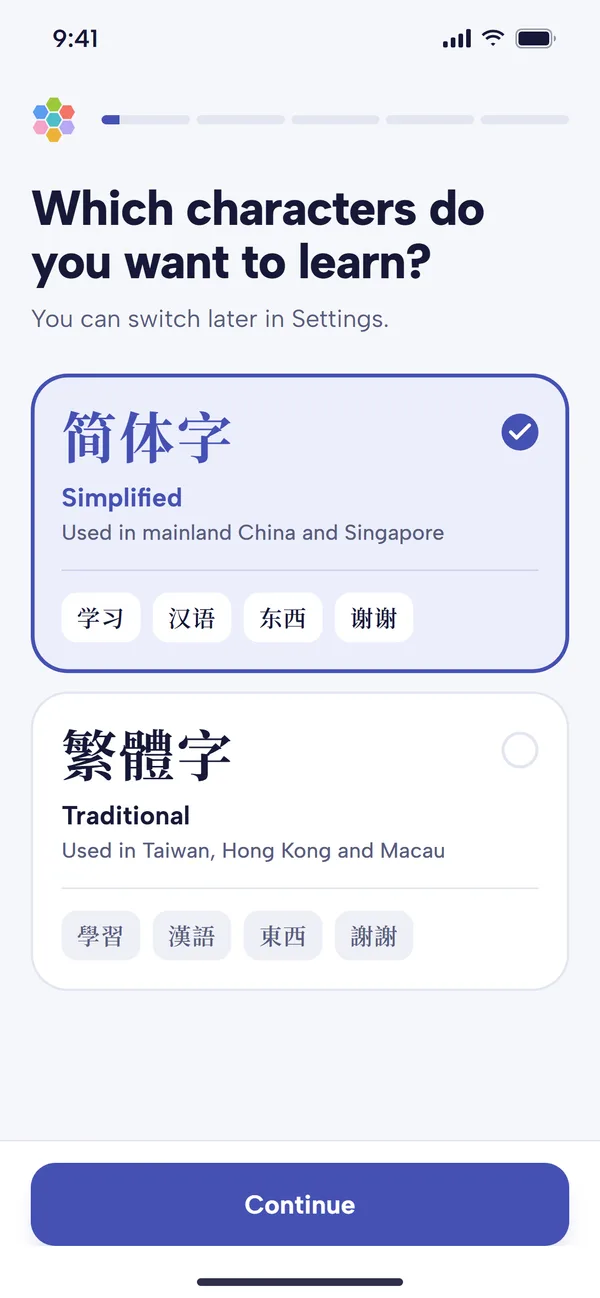
Choose Simplified or Traditional characters. 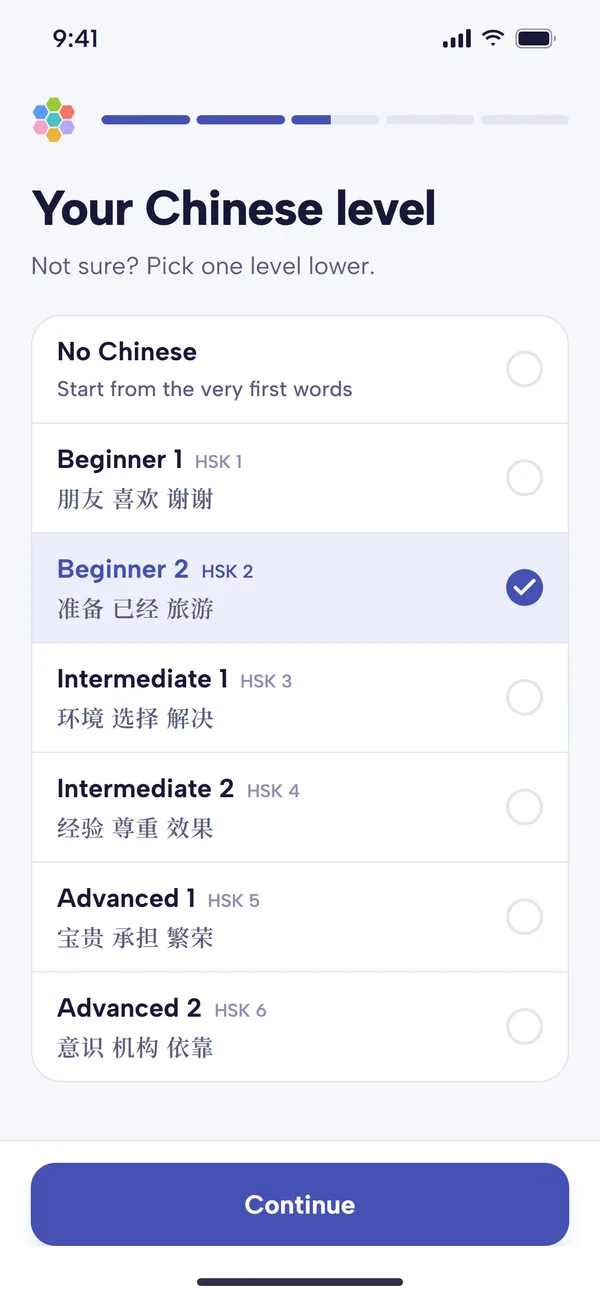
Pick your level. The sample words help; if unsure, go one lower. 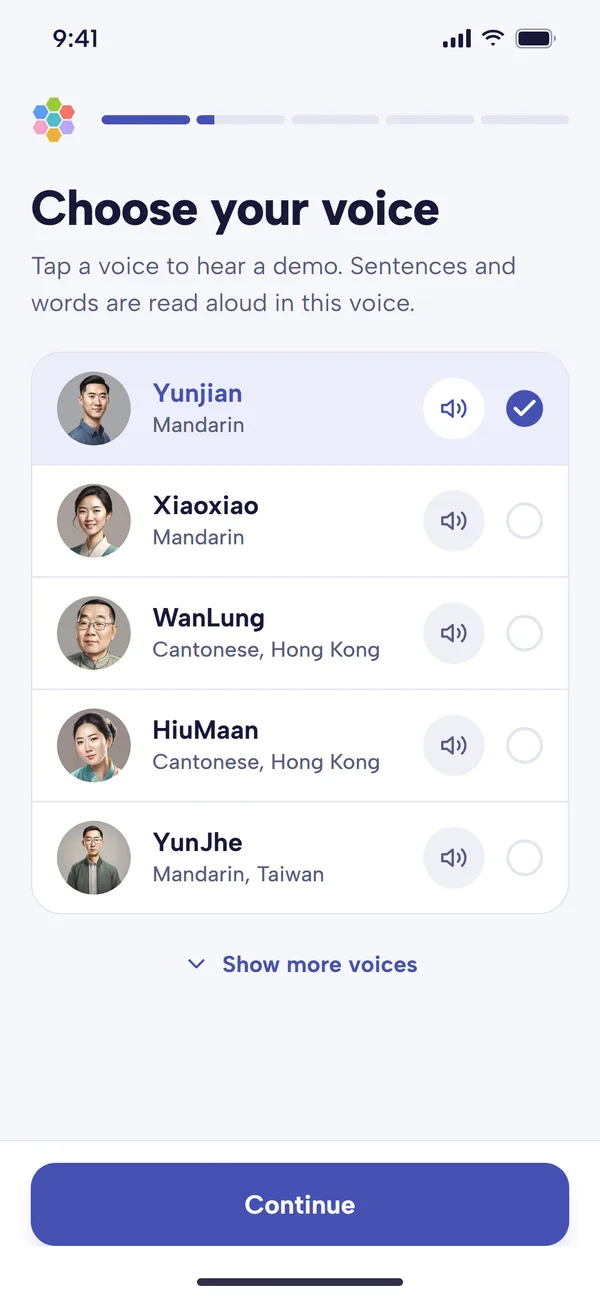
Tap a voice to hear it, then Continue.
Start your first lesson
From the Home screen, tap Lessons, choose a category and tap a pack. The Lesson Preview screen lists the words that will appear as blanks, split into new words and revision words, so you can look them over before you begin. Tap Start lesson to begin. A lesson has up to 10 sentences.
The Home screen
Everything in the app starts from Home. The icons at the top open your Account and Settings. Below them, a Continue where you left off card has a Start lesson button for your current pack, with your streak, known words and words to review underneath. The rest is grouped into two sections:
| Section | Item | What it's for |
|---|---|---|
| Learn | Lessons | Sentence packs, your own packs and Review Lessons |
| Learn | Chinese Articles | Read articles with tap-to-translate words |
| Learn | Listen Later | Hands-free audio for your saved articles |
| Learn | Focus Words | Words you want extra practice with |
| Practice and progress | Sentence Generator | AI example sentences for any word |
| Practice and progress | Your Vocabulary | Your known and unknown words, level by level |
| Practice and progress | Stats | Daily activity and overall progress |
Below these is the Your Referrals banner. If you share your referral link and someone subscribes to Premium through it, you earn 20% of their subscription fees, paid via PayPal once your balance is over £10 (at the time of writing).
How a lesson works
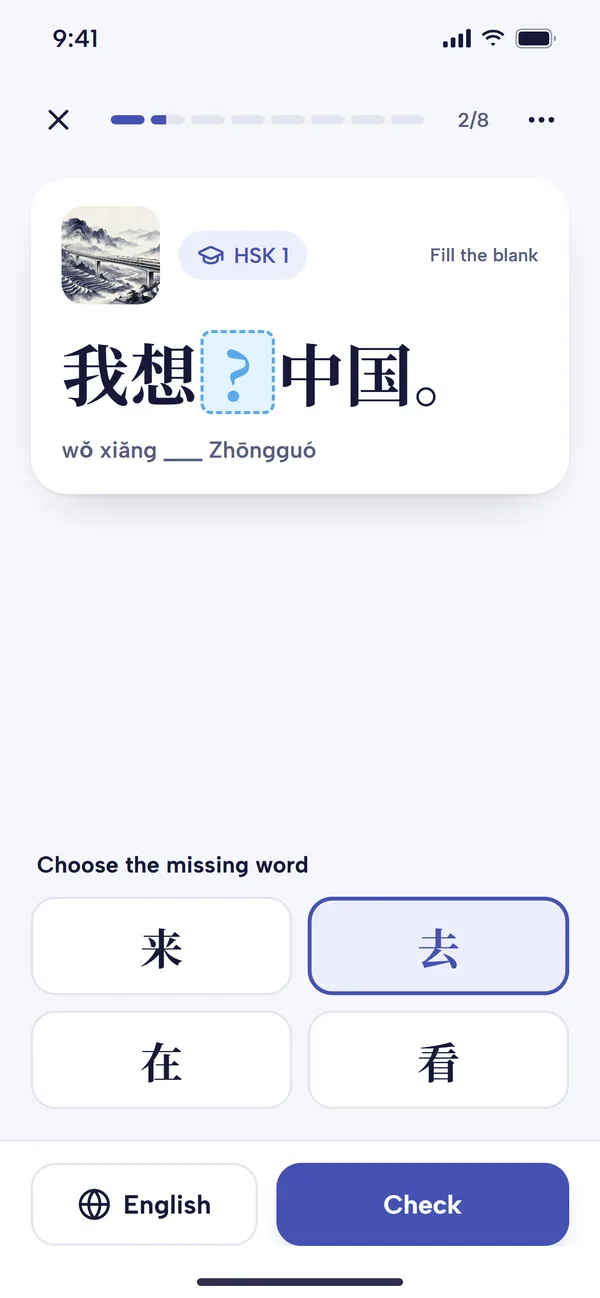
Each lesson screen shows one Chinese sentence with a word blanked out. Words that are new to you are highlighted in blue. You can:
- Tap any word to open its definition in a sheet that slides up: pinyin, meanings, HSK level, an audio button, your progress on the word and a Learning / Known switch. Tap Add to Focus Words to add it to Focus Words. If you don't like a definition, you can write your own.
- Tap English if you need the translation before answering. It replaces the pinyin under the sentence.
- Choose the missing word from the four choices under the sentence, then tap Check.
After you answer, a panel at the bottom shows Correct or Not quite with the right word and its meaning, and the English appears under the sentence. The speaker button plays the sentence, and Continue moves you on. The menu button (the three dots) at the top of the lesson has Rate Sentence, Report Sentence (please use it if anything looks wrong), Change Voice and Help, plus Edit Sentence in packs you made yourself.
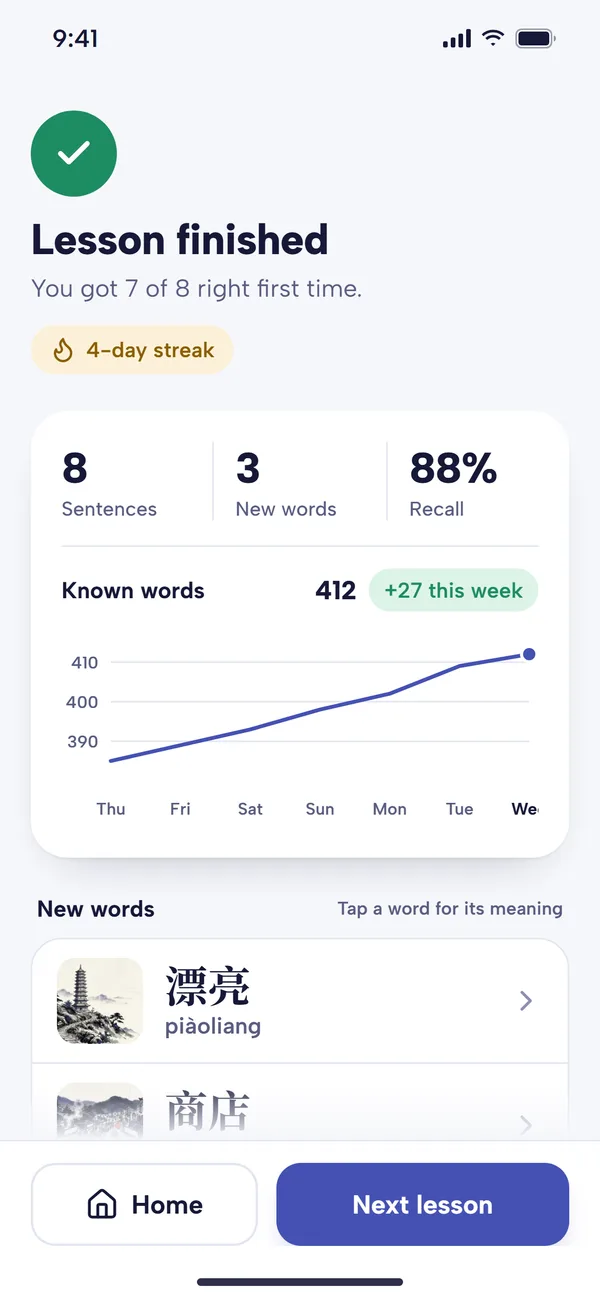
When the lesson ends, the Lesson Finished screen shows how many you got right first time, your streak, your recall, a chart of your known words, and the new and revised words (tap one for its meaning). You can then rate the sentences you saw, which is optional but helps personalise future lessons. One sentence a day is enough to keep your streak going.
Learning and Known: keeping your vocabulary accurate
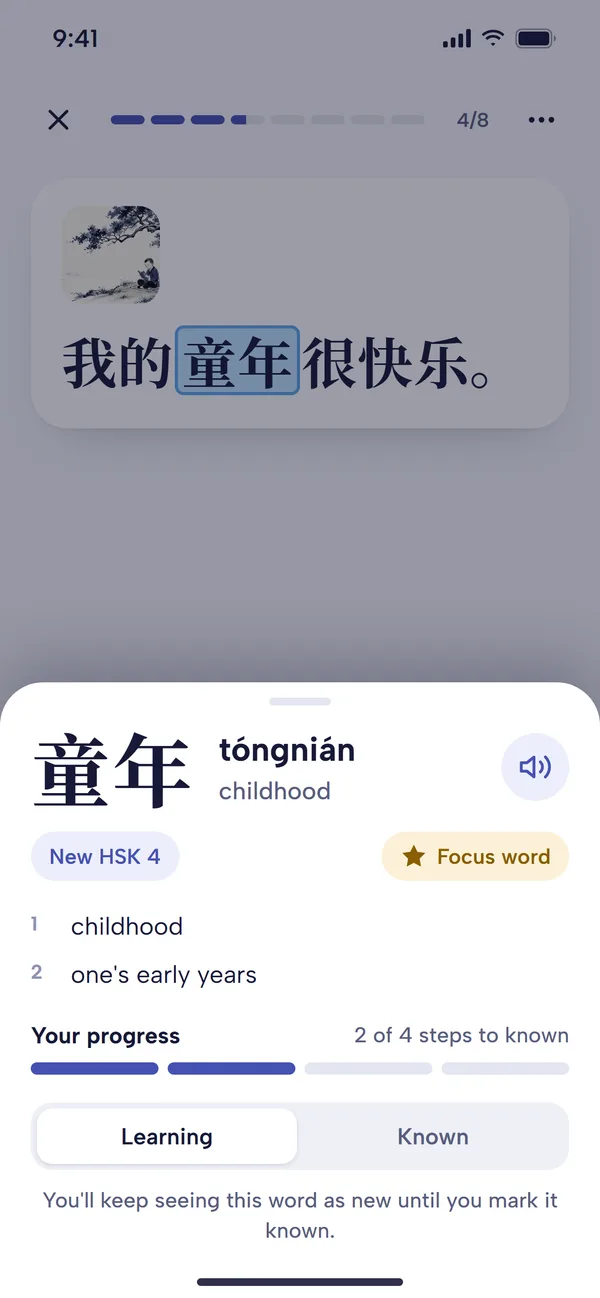
Mandarin Mosaic chooses sentences based on the words it thinks you know, so the more accurate your vocabulary, the better your lessons. Words become known in two ways:
- Automatically: after a set number of correct answers on a new word (three by default). You can change this anywhere from 1 to 10 under Settings, Guesses to mark as known. The word's definition shows how many steps it has to go, for example "2 of 4 steps to known".
- By hand: tap the word and switch it to Known. Switch it back to Learning if you realise you've forgotten a word.
Fill in the blanks or Free reading
The default lesson type is Fill in the blanks, a cloze test that hides one word for you to recall. The app blanks the new word, or the word due for review, so you practise the word the sentence was chosen for. If you prefer to simply read, switch Lesson type to Free reading in Settings, which shows the full sentence. There's more on how blanks are chosen in how cloze tests work in Mandarin Mosaic.
Spaced repetition and Review Lessons
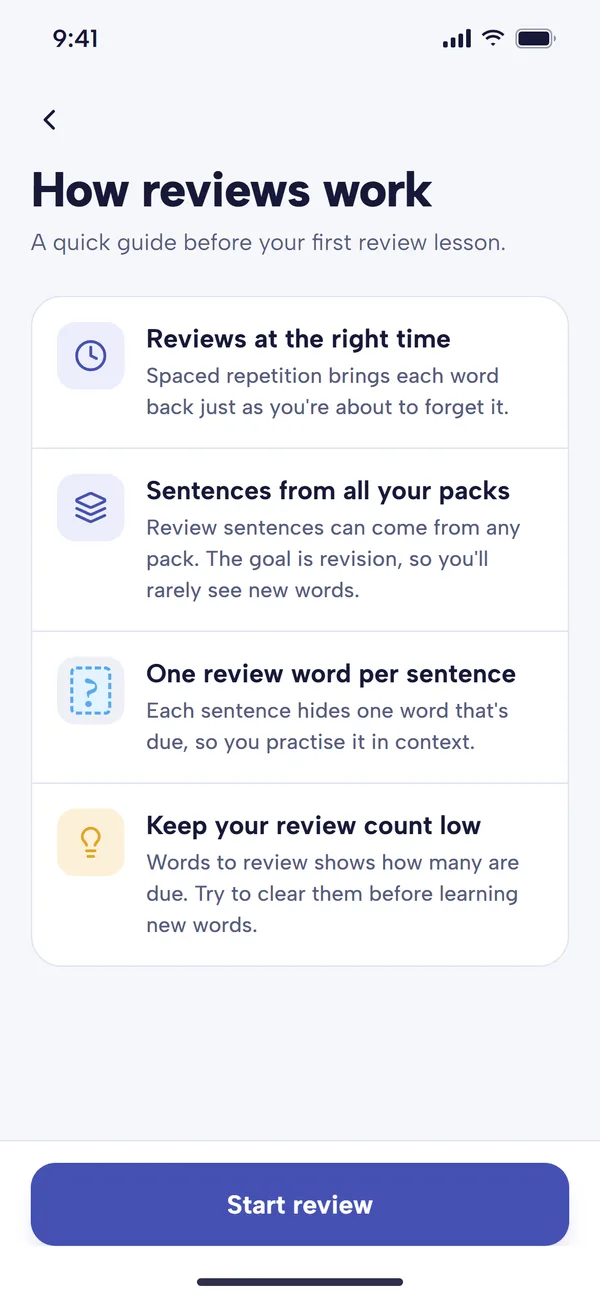
Every word you know has a review date. Each time you answer it correctly, the gap before its next review grows; get a known word wrong and it comes back sooner. Simply seeing a known word in a sentence also counts as a light review. This is spaced repetition, and it's the most efficient way to fight the forgetting curve.
Words that are due appear under Lessons, then Review Lessons, then Words to review, which shows how many are waiting. Each review sentence features one word that's due, and the sentences can come from any of your packs, so you'll rarely meet new words there. Try to clear your reviews before learning new words.
Tap the three dots on Words to review to open the Word Review settings:
- Categories and Minimum difficulty: limit reviews to certain pack categories, or skip easy words below an HSK level.
- Stick to lessons I've started: only use sentences from packs you've opened (on by default for new accounts).
- Review speed: how quickly words come back after you get them right.
- Daily limit: cap the number of reviews a day, so you can finish and stop.
- Scheduling method: the app's own Default scheduler, or SM-2, FSRS, HLR / DASH, SSP-MMC or Leitner if you have a favourite.
- Review order and Rate answer difficulty: after a correct answer on a known word, rate it Again, Hard, Good or Easy, as in Anki.
For more detail, read how spaced repetition works in Mandarin Mosaic.
Focus Words
Focus Words are words you want extra practice with, whether you already know them or not. Add them from the Focus Words screen on Home (Add focus word), or tap Add to Focus Words in any word's definition during a lesson.
Your focus words get their own lesson under Review Lessons, then Focus Words, or from Practise focus words on the Focus Words screen. Each sentence features one of them, drawn from every pack you have. They're also given priority in HSK pack lessons and in Words to review. If no sentence contains one of your focus words, add your own sentence with it to a custom pack. The free plan allows 10 focus words. See how focus words work for more.
Your own packs and sentences
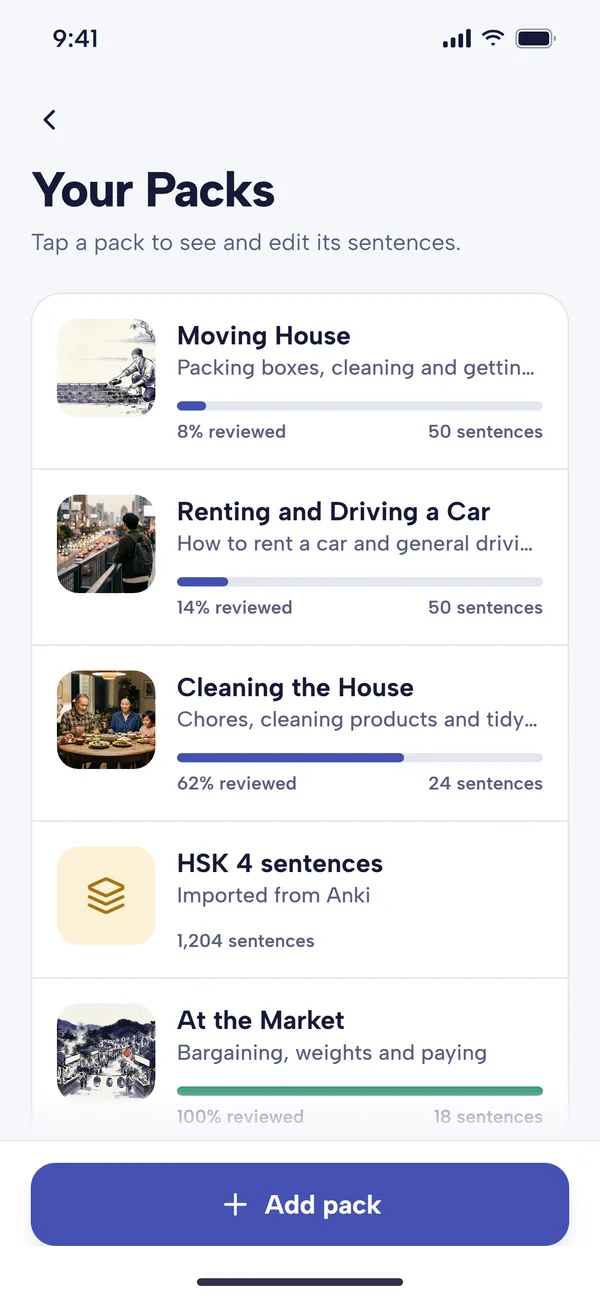
Every built-in sentence has been verified by a native speaker, but the real power of sentence mining is adding sentences that matter to you. To make a pack, go to Lessons, then Your Packs, tap Add pack and choose Create a new pack. Give it a name, a description and, if you like, an image.
To add sentences, tap the three dots on your pack and choose Add Sentence:
- Type or paste the Chinese into Mandarin and the English into Prompt, or fill in one and use Translate (Chinese to English or English to Chinese).
- Set Cloze lets you choose which word is blanked in lessons. Leave it and the app chooses automatically.
- Generate Image adds a picture to the sentence.
- The cog button at the top right has more actions, including Edit Segmentation if the app has split the Chinese into words the wrong way.
Tap a pack to start a lesson from it, exactly like a built-in pack. The free plan allows one custom pack and 10 custom sentences.
Importing Anki decks, CSV and text files
If you already have sentences in Anki or a spreadsheet, you don't need to type them in again. In Your Packs, tap Add pack, then Import sentences (or use Import sentences from a pack's three dots to add to an existing pack). Tap Choose File and pick an Anki deck (.apkg), a CSV file or a text file. Then:
- Choose which column holds the Chinese and which holds the English. Leave English as None for a Chinese-only deck.
- For CSV and text files, set Separated by to Comma, Tab or Pipe.
- Check the preview looks right, then tap the button to create the pack. Sentences already in the pack are skipped.
The full walkthrough is in how to import decks into Mandarin Mosaic, and our list of Chinese Anki decks only includes decks we've verified import correctly.
Already know lots of words from another app? Settings, Import known words, takes a CSV or text file with one word per line and adds those words to your known words, so lessons don't treat them as new.
Chinese Articles and Listen Later
Chinese Articles is a reader for longer texts. Its collections are grouped into Written for learners (such as Graded Stories, the Article Generator and Chunking Chinese) and News for native speakers, and a Continue reading card at the top takes you back to the article you were last reading. Pick a collection, then a topic where there is one, then an article. Display Options can sort articles by the percentage of new words, so you can find one at the right level. You read page by page: tap any word for its meaning, use Play Audio and Show English, and tap Next to turn the page. The reader's menu has Save Sentence (to put a sentence you like into one of your packs), Page Length, Font Size and Change Voice.
Tap the three dots on any article for more options: bookmark it, add it to Listen Later, Take Focus Lesson (a lesson built from the article's new words) or Simplify (a rewrite at a lower HSK level). Under Your Articles, Generate Article writes a story from your own prompt, or simplifies an article from a link you paste, at the level you choose. Generating articles is a Premium feature, and on the free plan you can read the first five pages of any article.
For ideas on what to read outside the app, see how to read Chinese news and comprehensible input for Chinese.
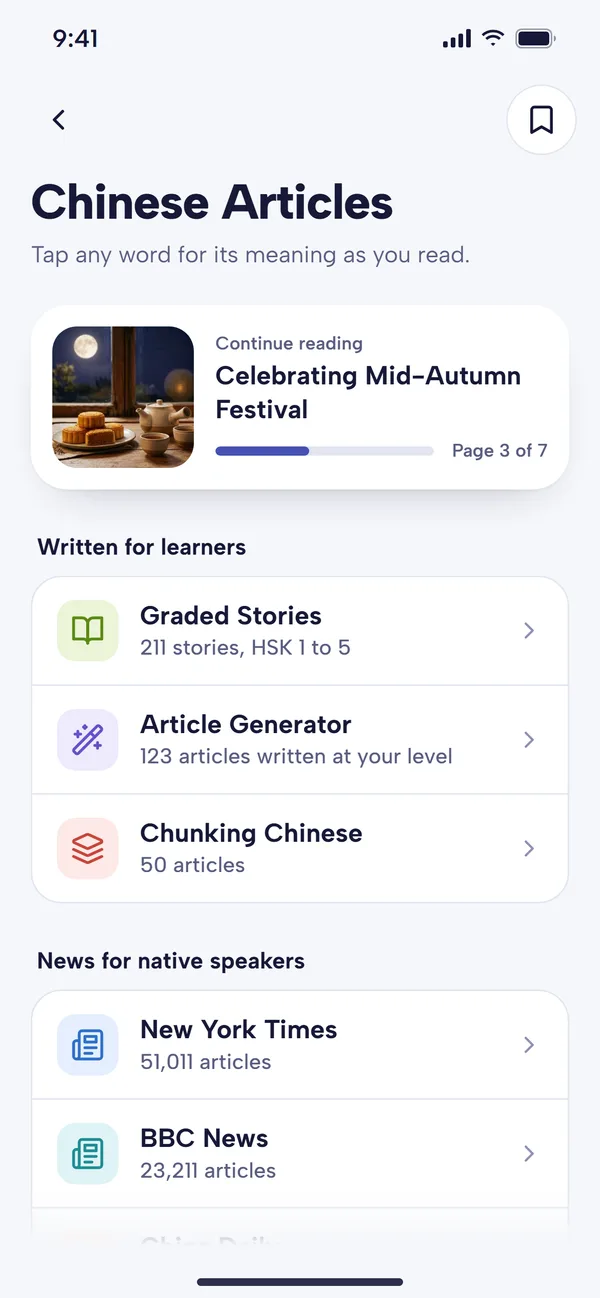
Pick a collection, or carry on with the article you were reading. 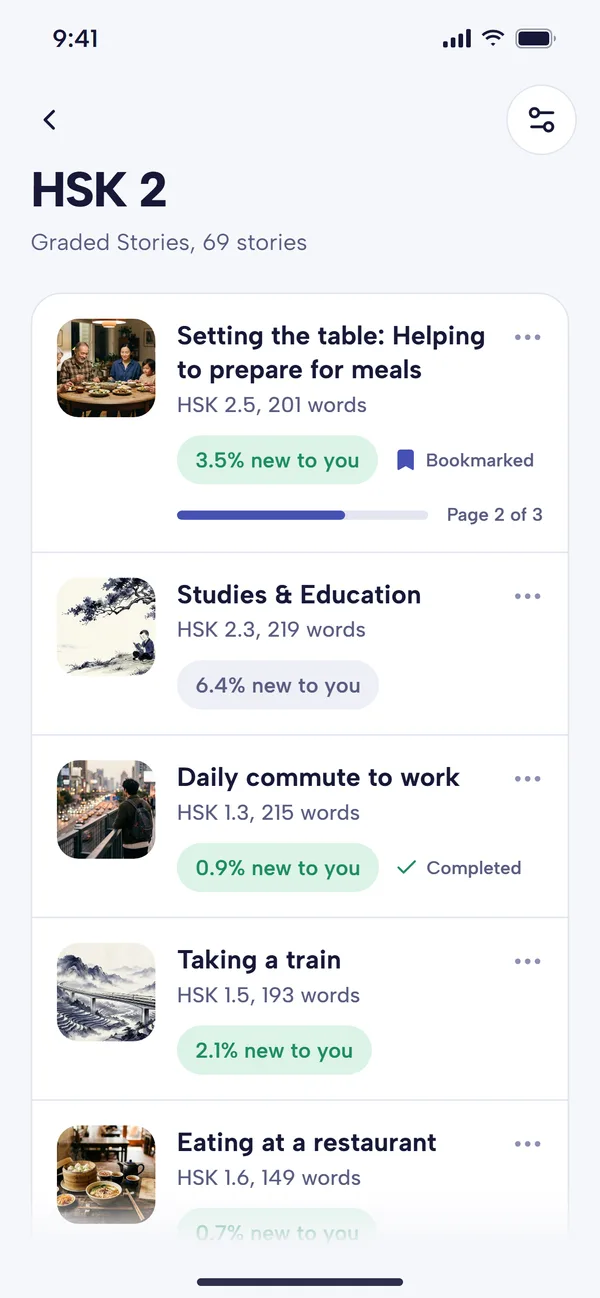
Each article shows how many of its words are new to you.
Listen Later
Listen Later turns articles into a playlist you can listen to with the screen off. In Chinese Articles, tap the three dots on an article and choose Add to Listen Later; its audio is prepared and downloaded for you. Open Listen Later from Home to play, skip and clear finished items with Remove finished. At the time of writing, free accounts get 15 minutes of Listen Later audio a month and Premium includes 5 hours.
Sentence Generator
The Sentence Generator writes an example sentence for any word, using words you already know plus the one you asked for. Type a Chinese word, or search in English and pick from the suggestions, then tap Generate. Tap any word in the result for its definition, Regenerate for a different sentence, or Save sentence to add it to one of your packs (you'll need to have created a pack first). Free accounts can generate 10 sentences a day.
Your Vocabulary and Stats
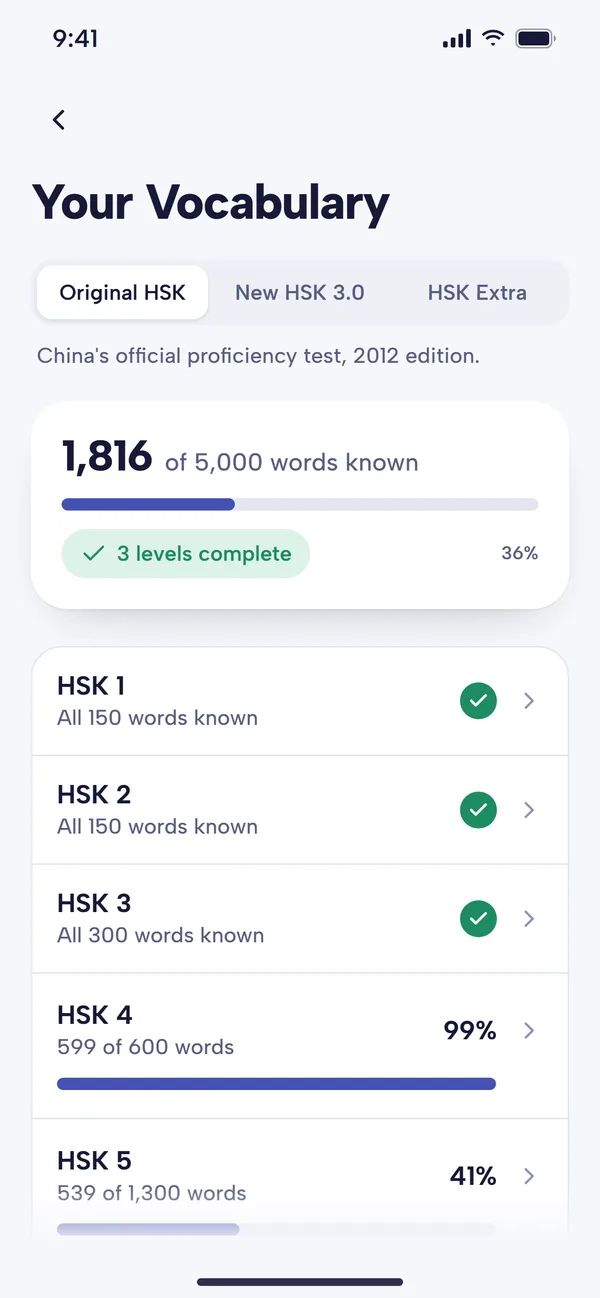
Your Vocabulary shows your progress through the HSK word lists. Choose the list with the switch at the top (Original HSK, New HSK 3.0 or HSK Extra) to see your total known words for it and your progress through each level, then tap a level to see its known and unknown words. Tap any word to see its definition or mark it known or unknown, which makes this the quickest place to tidy up your vocabulary.
Stats shows today's numbers (new words, sentences reviewed and words to review), your total known words, an estimate of your HSK level, and a daily activity chart you can view over different periods.
Settings worth knowing
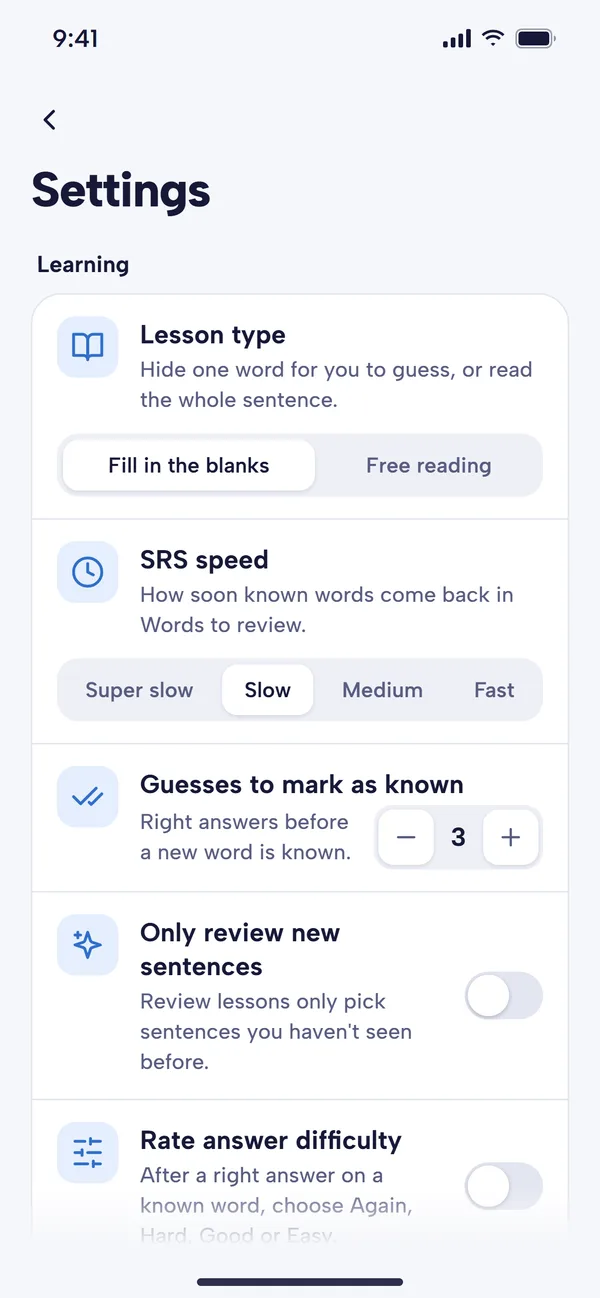
Open Settings from the icon at the top of the Home screen. The ones that make the biggest difference:
- Lesson type: Fill in the blanks or Free reading.
- SRS speed: Super slow, Slow, Medium or Fast. Faster means reviews come back more often.
- Guesses to mark as known: how many correct answers before a new word is marked known.
- Only review new sentences: review lessons only use sentences you haven't seen before.
- Type word answer: replaces the four answer choices with a box where you type the missing word in characters instead of choosing it (needs a Chinese keyboard).
- Choose voice: over 20 voices, including Cantonese and Taiwanese options, plus audio speed. Play audio before answering lets you hear the sentence first, which is good listening practice.
- Show sentence images, Theme and Change character set (custom packs you've added aren't converted).
- Reset vocabulary: starts again from a chosen HSK level. It erases your known words and can't be undone, so use it only if your level was set badly wrong.
Sync, the free plan and Premium
After the 30-day free trial, you can keep using Mandarin Mosaic on the free plan or subscribe to Premium. At the time of writing, Premium costs £11.95 a month, or the equivalent of £7.92 a month billed yearly. See pricing for current details.
| Feature | Free plan | Premium |
|---|---|---|
| Lessons | 1 a day | Unlimited |
| Focus Words | 10 | Unlimited |
| Custom packs | 1 | Unlimited |
| Custom sentences | 10 | Unlimited |
| Chinese Articles | Limited | Unlimited |
| AI features (Sentence Generator) | Limited | Unlimited |
| Sync between devices | No | Yes |
With Premium, your progress syncs automatically every few hours, and you can sync straight away with Sync Progress in Settings. You can view, change or cancel your subscription from Account, Manage Subscription.
A simple daily routine
Fifteen to twenty minutes a day works well:
- Clear Words to review first. If the number keeps growing, set a Daily limit rather than skipping reviews.
- Do one or two new lessons from your current pack. Glance at the Lesson Preview before you start.
- Tap freely. Look up any word you're unsure of, listen to it, and add the tricky ones to Focus Words.
- Keep Learning and Known honest. If you realise you've forgotten a "known" word, switch it back to Learning.
- Read or listen to something longer a few times a week: a page of an article, or your Listen Later playlist on a walk.
- Save good sentences you meet elsewhere into your own pack.
For more habits that help, see a Chinese learning morning routine.
For a closer look at any part of the app, go back to the guides to each feature.