 Mandarin Mosaic
Free on iPhone, iPad and Android.
Download on theApp Store Get it onGoogle PlayYour first month of Premium is free.
Custom Packs in Mandarin Mosaic: Your Own Sentences

The built-in packs cover the HSK word lists, but the Chinese you most want is usually your own: words for your job, your partner's family or the drama you're watching. Mandarin Mosaic has four features for that:
- Custom Packs: your own sets of sentences, studied as lessons like any other pack.
- Custom Sentences: type or paste a sentence, and the app translates it, splits it into words and adds audio.
- Import: bring in sentences from an Anki deck, a CSV or a text file, or a list of words you already know.
- Your Vocabulary: see which words you know, level by level, and correct any the app has wrong.
On the free plan you can have one custom pack, and adding sentences to it stops at 10. Premium removes both limits. The rest of this guide goes through each feature using the names you'll see in the app.
Making a pack
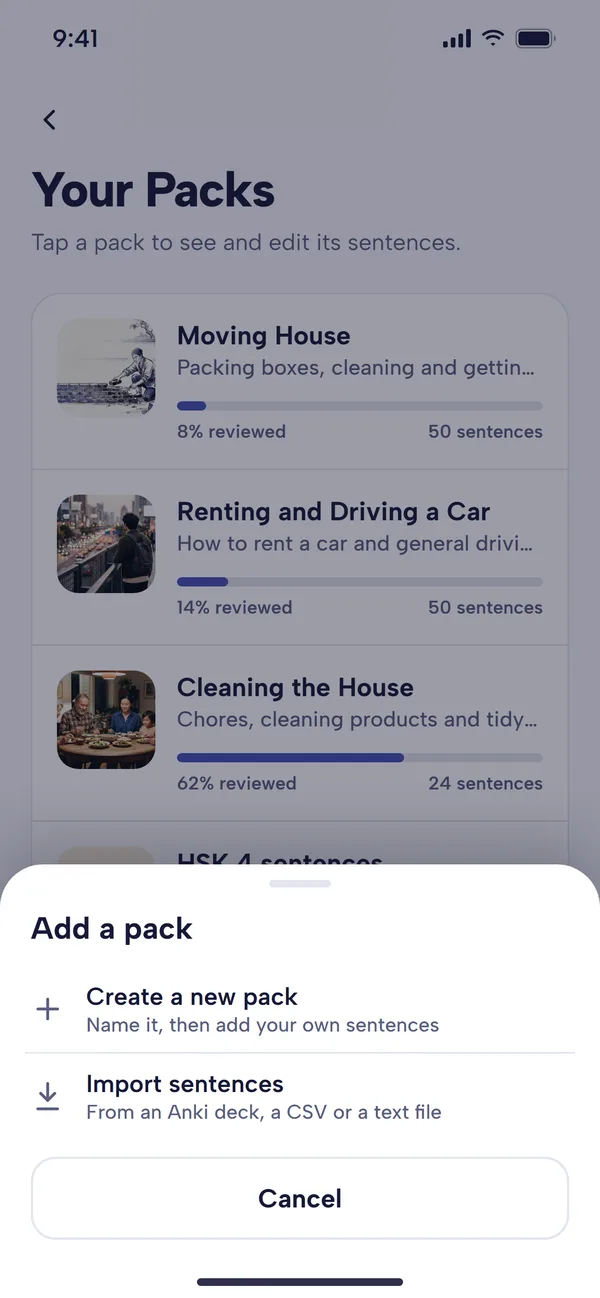
- On the Home screen, tap Lessons, then Your Packs under "Your own practice".
- Tap Add pack (Add a pack if you have none yet), then Create a new pack.
- On the New pack screen, give it a Name (the only thing it needs) and, if you like, a Description. Choose image searches for a cover picture; without one, the pack gets a plain tile.
- Tap Create pack.
The other choice on the sheet, Import sentences, makes a pack from a file instead (see below).
A pack works best with a theme: one pack for a trip, another for work. Lessons draw from one pack at a time, so a theme keeps them coherent.
Adding your own sentences
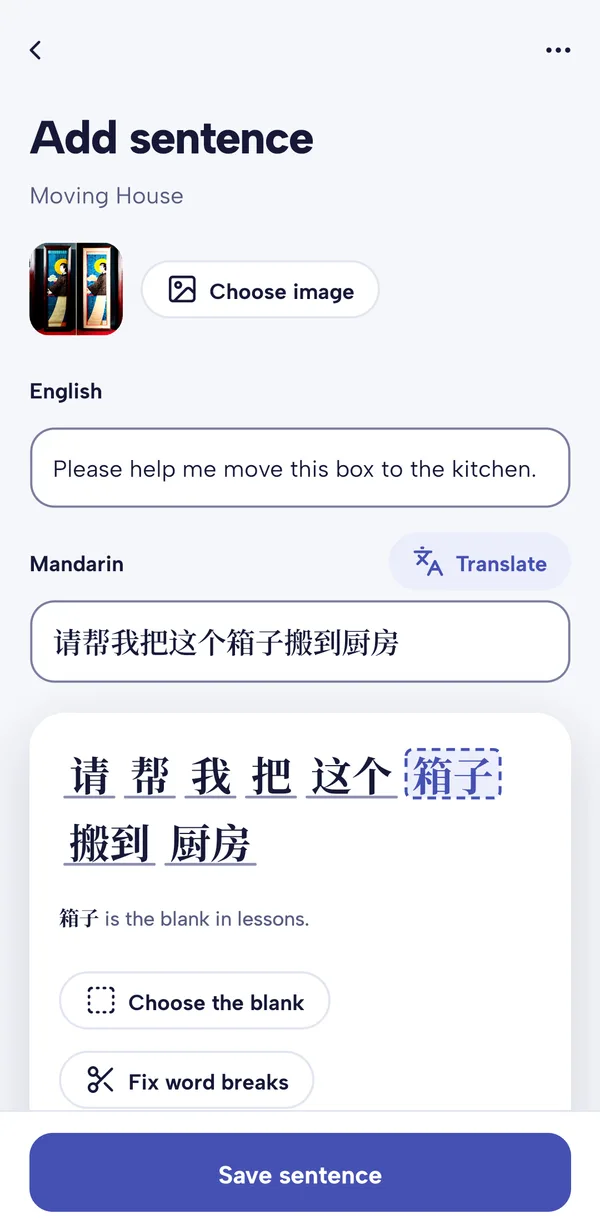
In Your Packs, tap the three dots on your pack and choose Add sentence.
- English and Mandarin: write either one, then tap Translate to fill in the other. If both already have text, Translate asks which to replace before you tap Use translation.
- Once there's Mandarin, the sentence appears below, split into words. The word in the dashed box is the blank you'll fill in during lessons. Choose the blank lets you pick it, usually the word you added the sentence for; if you don't choose, the app picks the blank each time the sentence comes up.
- Fix word breaks corrects the split if the app has joined or divided words wrongly. You put a space where one word ends and the next begins; the characters themselves can't change there.
- Choose image searches for a small picture to show beside the sentence. Without one, it shows the pack's cover.
Tap Save sentence. The form clears, ready for the next one, so you can add a batch in one go. Every sentence gets audio from the app's text-to-speech voices.
A sentence you add yourself hasn't been checked by our native speakers, unlike the built-in packs, and machine translation can miss the meaning. Check the English makes sense, and take sentences from native sources where you can. Our sentence mining guide covers what makes a good sentence to add.
Saving sentences as you read
You don't have to type everything in. Two other screens save straight into a pack:
- Chinese Articles: in the reader, open the three dots and choose Save sentence. Trim the page down to the part you want, add the English (or tap Translate), then tap Choose a pack. See the Chinese Articles guide.
- Sentence Generator (on Home, under Practice and progress): type a word and it writes an example sentence using words you already know. Tap Save sentence to keep it, picture and all.
If you have no pack yet, the sheet asks you to name one and Create pack and save does both at once. Otherwise, New pack at the bottom of the list makes another.
Making a pack from a word list
Mandarin Mosaic teaches words inside sentences, so a pack needs sentences, not a bare list of words. If you have a list (from a textbook chapter, say), there are three ways to use it:
- Write a sentence for each word with the Sentence Generator and save each one to your pack. It writes around words you already know, so each sentence has the new word and little else that's new. Free accounts can generate 10 sentences a day.
- Add them as Focus Words. Focus lessons find sentences containing your focus words in all your packs, so this works when the words are already in the built-in packs. See how focus words work.
- If you already know the words, import them as known words instead (see below), so lessons stop teaching them as new.
Importing sentences from Anki, a CSV or a text file
If your sentences are already in Anki or a spreadsheet, import them. Choose Import sentences on the Add a pack sheet for a new pack, or from a pack's three dots to add to one you have. The importer reads:
- Anki decks exported as .apkg (or the same file renamed to .zip)
- spreadsheets saved as .csv or .tsv
- text files with one sentence per line
You choose which column holds the Chinese and which the English, check a preview, and the button tells you what will happen, such as Create pack with 354 sentences. Repeated rows and sentences already in the pack are skipped, so re-importing an updated export only adds the new ones. The step-by-step version, including how to export from Anki, is in how to import Anki decks into Mandarin Mosaic, and our list of Chinese Anki decks has decks we've checked import cleanly.
Studying and editing your pack
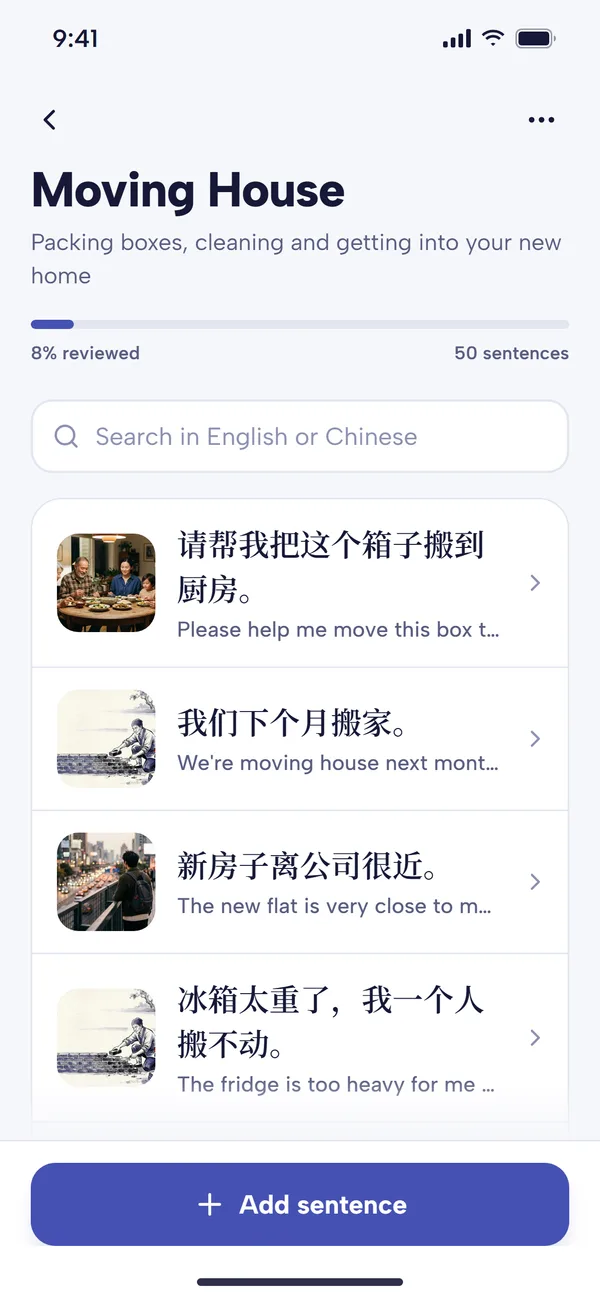
In Lessons, Your Packs, tap a pack to start a lesson from it, exactly as with a built-in pack. The app checks each sentence against the words you know and prefers sentences with one new word, then the fewest. Words become known the usual way: by answering them correctly (three times by default), or by switching them to Known yourself. Sentences from your packs also turn up in Words to review; the Word Review settings' Categories include Your Packs, and it's on by default.
The three dots on a pack open its options:
- Add sentence and Import sentences.
- Show sentences: every sentence in the pack, 25 to a page, with a search box that takes English or Chinese. Tap a sentence for Translate, Edit English, Edit Mandarin, Fix word breaks, Choose the blank, Choose image, Delete image and Delete sentence. Editing the Mandarin splits it into words again and clears the blank you chose.
- Reset progress: takes the pack's progress back to 0%. Your known words are kept.
- Edit pack details: name, description and image.
- Delete pack: removes the pack and its sentences. You type the pack's name to confirm, and it can't be undone. Words you know stay known.
You can also fix a sentence mid-lesson: in a lesson from your own pack, the three dots include Edit sentence.
On a new phone, a pack's sentences download when you start a lesson from it, or when you tap Download sentences on its page; until then the add and edit options are hidden. If you switch between Simplified and Traditional characters in Settings, the built-in packs change but your custom packs stay as you wrote them.
Importing words you already know
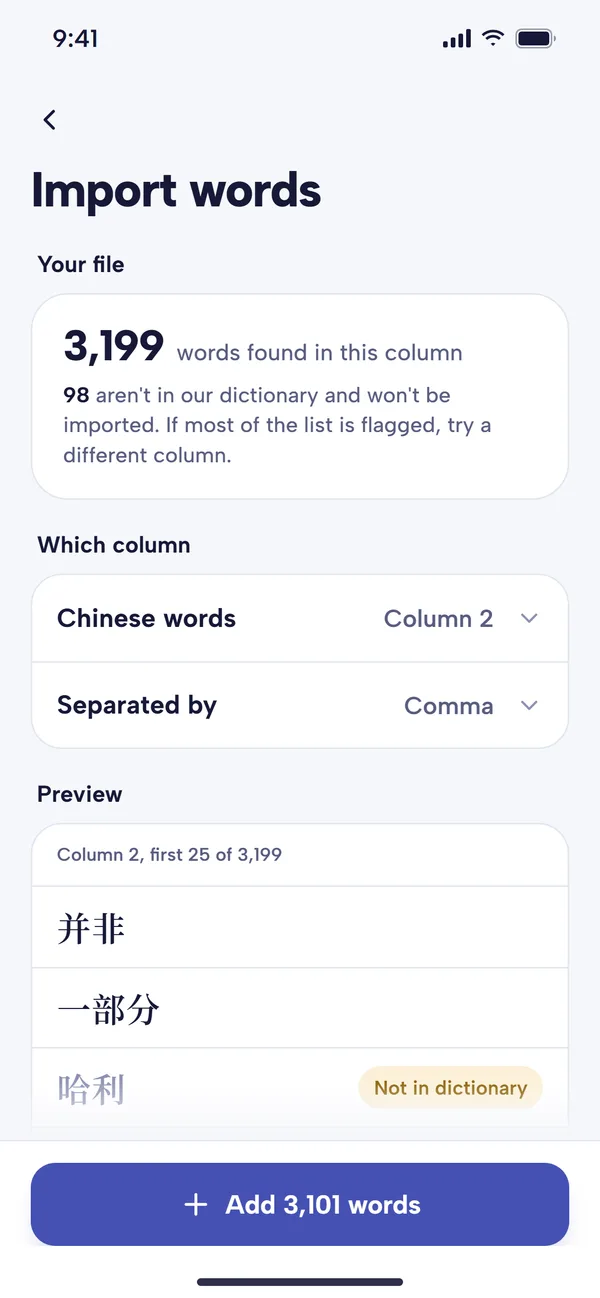
If you've learned Chinese elsewhere, the app can't know which words you already have, and lessons will teach them again. Import known words fixes that in one go:
- Open Settings and, under Data and storage, tap Import known words.
- On the Import words screen, tap Choose file and pick a CSV or text file with one word per line, exported from another app.
- If the file has several columns, choose the one under Chinese words, and check Separated by. Words that aren't in the app's dictionary, such as names and typos, are marked "Not in dictionary" and won't be imported.
- Tap the button (for example Add 3,101 words) and confirm.
The words go straight into your known words. Words you already know are skipped, and it can't be undone, so check the preview first. The new words are spread over the coming days for review rather than all falling due at once. The file needs whole words: lists of single characters, like some Dong Chinese exports, aren't supported yet.
Seeing what you know: Your Vocabulary
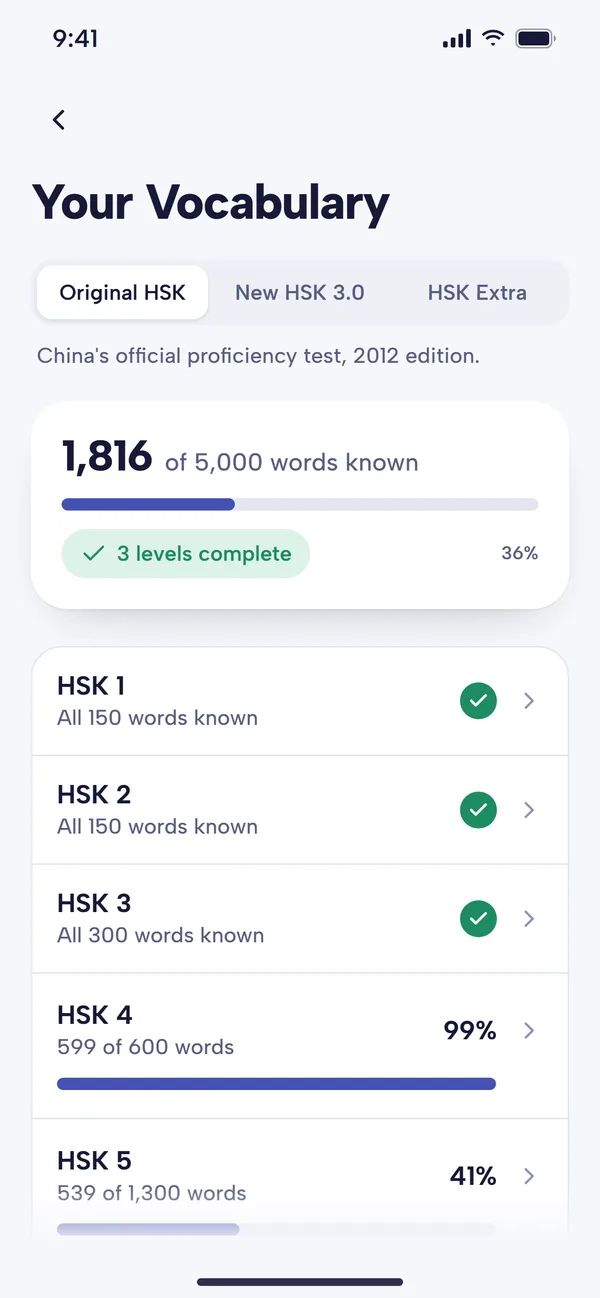
Your progress through each HSK list. 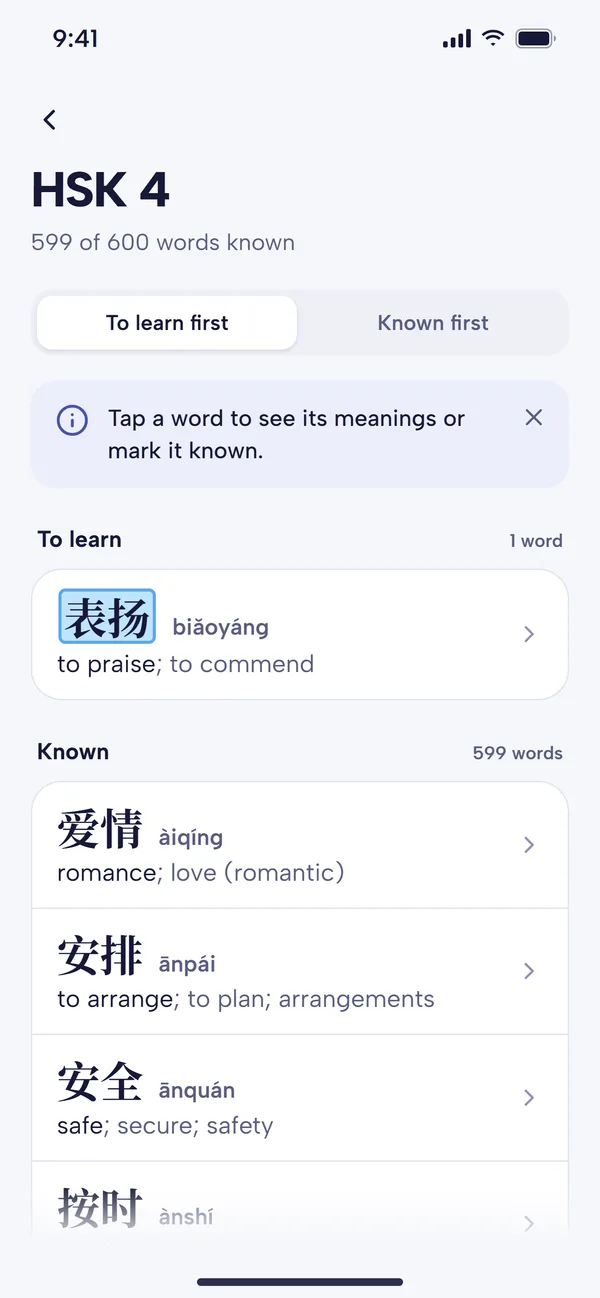
Tap a level to see its words to learn and the ones you know.
Lessons are only as good as the app's picture of what you know. Your Vocabulary, on Home under Practice and progress, shows it:
- Choose a list at the top: Original HSK, New HSK 3.0 or HSK Extra (common words beyond the original HSK). You see how many of its words you know and your progress through each level.
- Tap a level to see its words under To learn and Known, sorted To learn first or Known first.
- Tap a word to see its meanings and switch it between Learning and Known. This is the quickest way to tidy up a level: mark the words you know, and send back any you've forgotten.
Your Vocabulary covers the words on these lists. Words from your own packs that aren't on them still count as known in lessons, and you can change any word from its sheet when you tap it in a lesson or an article. If your starting level was badly wrong, Reset vocabulary in Settings starts again from a level you choose, but it erases your known words, so use it only as a last resort.
Free plan and Premium
At the time of writing:
- Free plan: one custom pack. Once it holds 10 sentences, adding more (by hand, by saving or by importing) needs Premium. The pack's page shows how many you've used, such as "7 of 10 free sentences used". Import known words and Your Vocabulary have no limit.
- Premium: as many packs and sentences as you like, which makes it the practical choice for importing a whole deck.
Premium's first month is free. See pricing for current details.
Common questions
Can I make a pack from a list of single words?
Not directly: packs hold sentences. Use the Sentence Generator to write a sentence for each word and save them to a pack, or add the words as Focus Words. If you already know the words, import them as known words instead.
Are my own sentences checked?
No. Only the built-in packs are checked by native speakers. The app splits your sentences into words and adds audio, but it doesn't correct them, so take sentences from reliable sources.
Does deleting a pack or resetting its progress lose my known words?
No. Both affect only the pack. Words you've learned stay known.
Where do I add a sentence for a word I keep forgetting?
Add it to Focus Words from its word sheet, and if no pack has a good sentence for it, add one of your own to a custom pack. Our guide to cloze tests explains how the blank is chosen when you don't choose it yourself.