 Mandarin Mosaic
Free on iPhone, iPad and Android.
Download on theApp Store Get it onGoogle PlayYour first month of Premium is free.
How Chinese Articles Work in Mandarin Mosaic

Chinese Articles is Mandarin Mosaic's reader for longer texts: graded stories written for learners, real Chinese news, and articles the app writes for you at your level. Every article shows how many of its words are new to you, so you can pick one you'll understand, and you can tap any word as you read. This guide covers finding an article, reading it, and generating your own.
Finding something to read
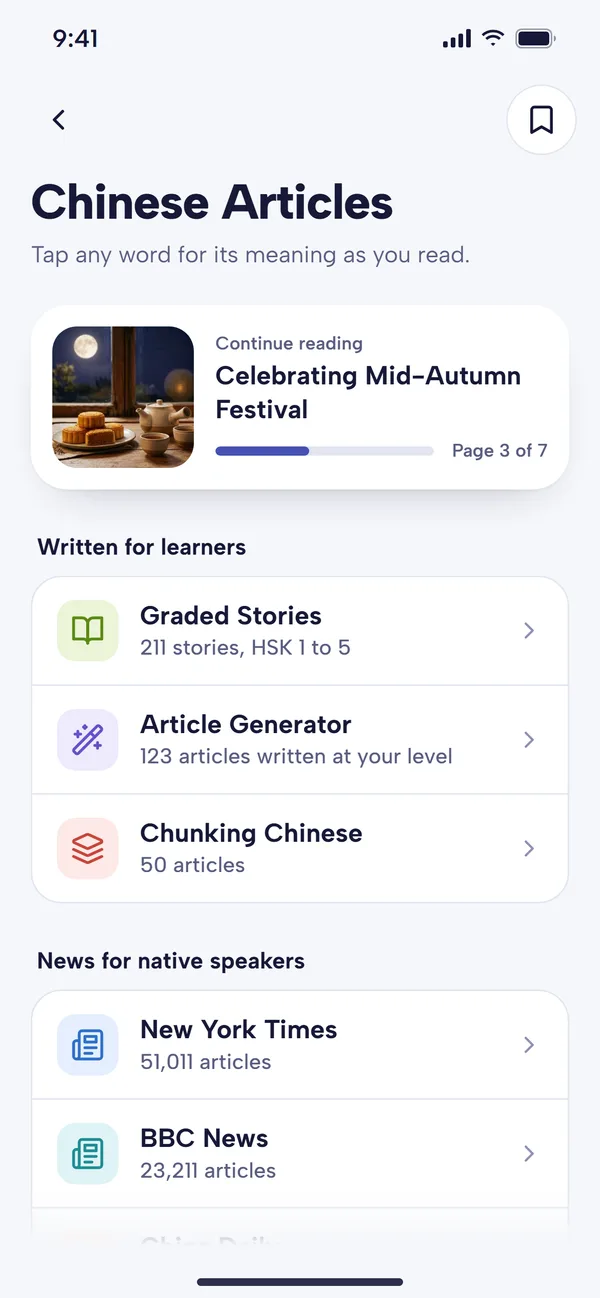
On the Home screen, tap Chinese Articles under Learn. The collections come in two groups:
- Written for learners:
- Graded Stories: more than 200 short stories, sorted by HSK level from 1 to 5.
- Article Generator: articles you've had the app write for you (see below).
- Chunking Chinese: articles from our partner Chunking Chinese, listed in course order.
- News for native speakers: real articles from the Chinese editions of news sites such as the New York Times, BBC News and China Daily, sorted by topic (China, International, Economy, Culture, Technology and others). These aren't simplified, so they suit intermediate and advanced readers, or anyone happy to tap a lot of words.
Pick a collection, then a level or topic (or All stories / All articles), then an article. The Continue reading card at the top takes you back to the last article you didn't finish, at the sentence you stopped on.
Choosing an article at your level
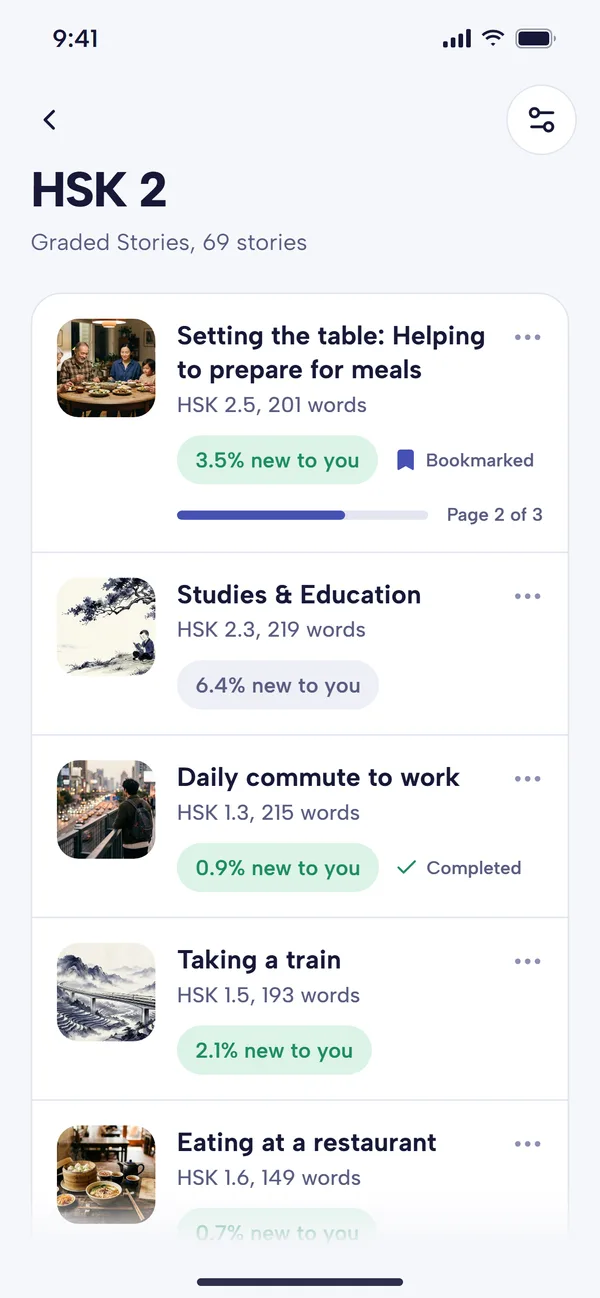
Each article in a list shows two measures of difficulty:
- An HSK level with a decimal, such as HSK 2.5, and the number of words.
- "% new to you": the share of its words that aren't among the words you know in the app. This one is personal, so it's the better guide. The pill is green up to 5%, grey up to 10%, gold up to 15% and coral above that.
For reading that feels comfortable, aim for articles where about 5% or fewer of the words are new: that's roughly one unknown word in every twenty, enough to learn from without losing the thread. Our post on comprehensible input explains why that level works.
The settings button at the top right of a list opens Sort and filter. Order can be Easiest (fewest new words first, the default) or Newest. Hide completed hides the articles you've finished. Articles you've finished are marked Completed, and ones you've started show how far you've read.
Reading an article
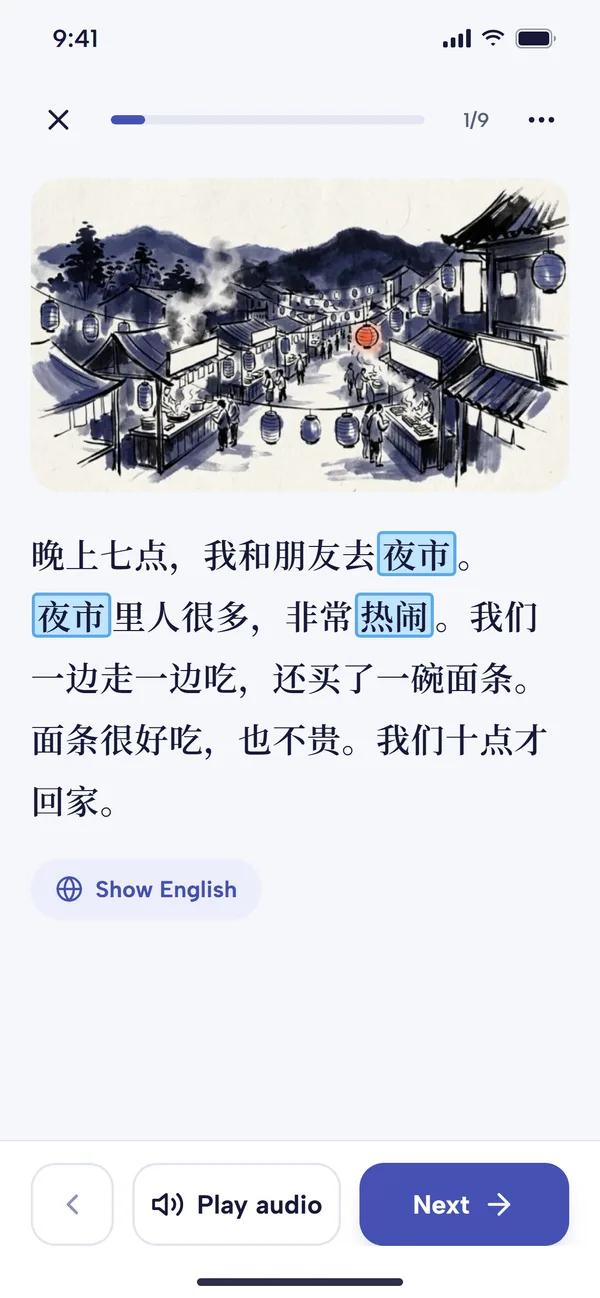
Articles are read a page at a time. Words that are new to you are boxed in blue, and every word can be tapped.
- Tap a word to see its pinyin, meaning and HSK level, and to hear it. From the same sheet you can tap Add to Focus Words to practise it in lessons (see focus words), or set it to Known if you already know it, and its highlight turns green.
- The speaker button reads the page aloud.
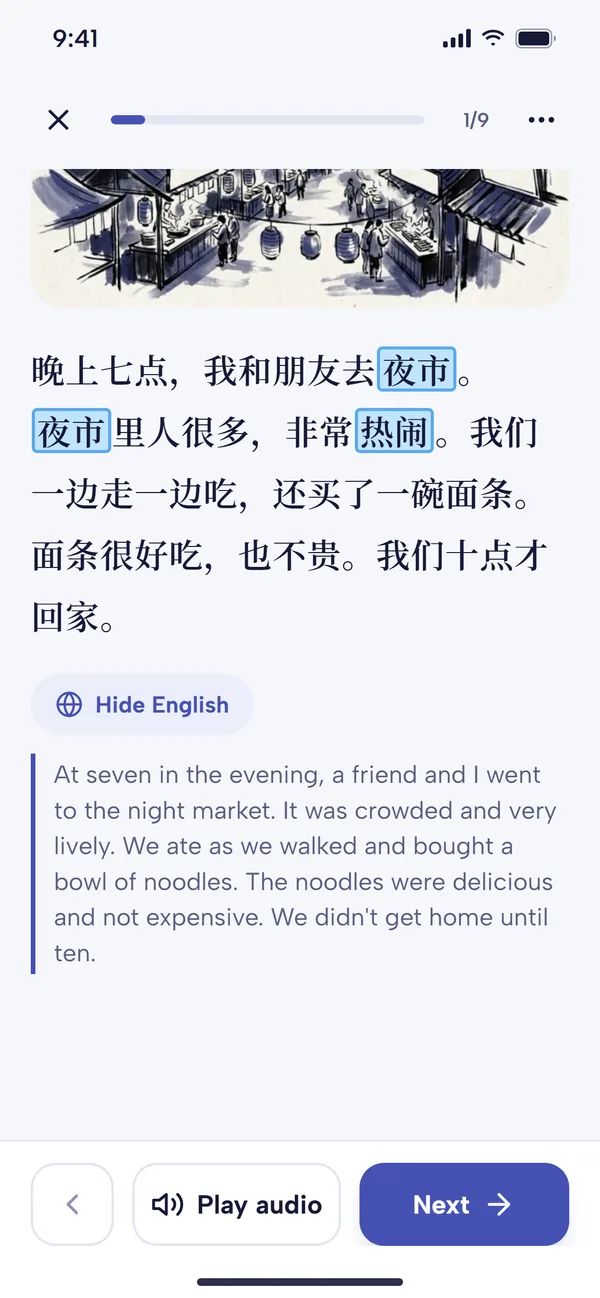
- Show English shows a translation of the page underneath; tap Hide English to hide it again. Each new page starts with the English hidden, so try the Chinese first.
- Next turns the page, and the back arrow goes to the previous one. On the last page, the button reads Finish article.
There's no pinyin line over the text: pinyin is one tap away for any word you need, so you practise reading the characters themselves.
Making reading fit you
The three dots at the top right of the reader open its menu:
- Page length: Short (a sentence or two, about 20 characters, the default), Medium (about 80) or Long (about a paragraph, 160). Short pages suit beginners; longer pages read faster once you're confident.
- Text size: Small, Medium or Large.
- Chinese font: Basic (plain, even strokes) or Artistic (like brush writing).
- Change voice for the audio.
- Save sentence puts the sentence you're reading into one of your packs, so it comes up in lessons. It's the easiest way to mine sentences from what you read.
- Bookmark, Add to Listen Later and View original article (for news).
Text size, font and page length stay as you set them for the articles you read next. Articles appear in Simplified or Traditional characters, following the setting for the whole app.
After reading: focus lessons and more
When you tap Finish article, the Article finished screen shows how many words you read, what share were new, and the article's HSK level. A short, optional set of questions follows (how much you liked it, how hard it was, how much you understood); your answers help us pick better articles. Skip it if you like.
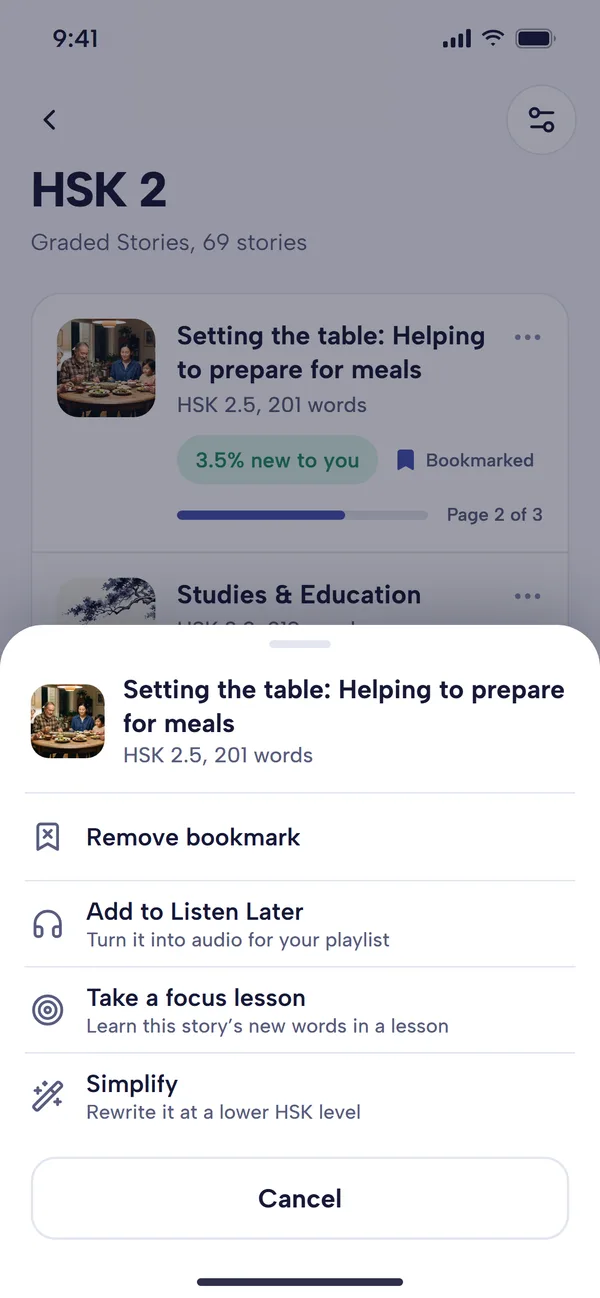
The three dots next to any article in a list offer more:
- Take a focus lesson: a lesson built from the article's new words, in sentences, so the words you've just met get practice straight away. Doing it after reading is one of the best ways to make an article's words stick.
- Simplify: has the app rewrite the article at a lower HSK level, which is handy for a news story that's too hard (see below).
- Add to Listen Later: turns the article into audio for your Listen Later playlist, to listen to with the screen off.
- Bookmark: keeps the article in your Bookmarked Articles, which you open from the bookmark button at the top of the Chinese Articles screen.
Generating your own articles
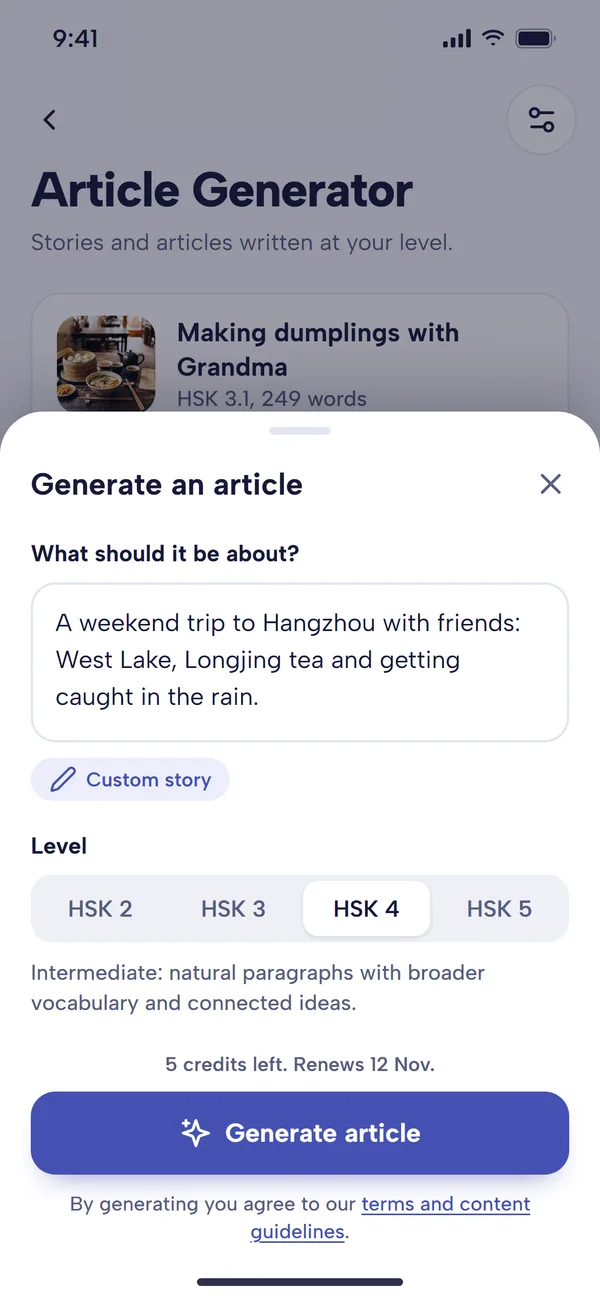
Article Generation writes a new article for you, using the words you know. Open Article Generator in Chinese Articles and tap Generate article.
- Under What should it be about?, describe a story ("a weekend trip to Hangzhou with friends") or paste a link to an article. A link is adapted rather than written from scratch.
- Pick a Level: HSK 2, 3, 4 or 5. The app suggests one from your level, or remembers the last one you chose.
- Tap Generate article. It takes a few minutes, and the app sends a notification when your article is ready. Until then it shows as Generating… at the top of the list.
Simplify works the same way for an existing article: choose it from the three dots and pick a lower level. Articles you've generated can be renamed, given a new picture or deleted from their three dots.
Generation is part of Premium, with 30 articles a month at the time of writing; the sheet shows how many you have left and when they renew. There's also a free article generator on our website to try it out.
What's free and what's Premium
At the time of writing:
- Free plan: every collection is open, and you can read the first five pages of any article, with all the reading tools.
- Premium: whole articles, Hide completed in Sort and filter, and Article Generation (30 a month).
Premium's first month is free. See pricing for current details.
Tips for reading well
- Read easy, and read a lot. Several articles at 2–5% new words do more than one hard one you struggle through. Start with Graded Stories at your HSK level.
- Try the Chinese first. Read the page, then use Show English to check, not the other way round.
- Collect as you go. Add a few words to Focus Words or save a good sentence to a pack on each article, rather than every unknown word.
- Listen again later. Add articles you've read to Listen Later: hearing a text you already understand is great listening practice.
- Move up to news gradually. When graded stories feel easy, try news with Easiest order, or simplify a news story to your level. Our post on reading Chinese news has more ideas.
Common questions
Is Chinese Articles the same as a graded reader?
Partly. Graded Stories are graded readers: written for learners at set HSK levels. The news collections are real articles for native speakers, levelled by how many of their words you know rather than rewritten. For printed readers, see our guide to Chinese graded readers and textbooks; for other reading apps, see Du Chinese vs The Chairman's Bao.
Does reading an article mark words as known?
No. Words become known when you answer them correctly in lessons (three times), or when you mark them known yourself from the word sheet. As more of your words become known, the "% new to you" figures drop.
Why can't I generate an HSK 1 or HSK 6 article?
The generator writes at HSK 2, 3, 4 or 5 only. For HSK 1, start with the HSK 1 Graded Stories; above HSK 5, the news collections are written for native speakers anyway.